The Cross Reference feature is a powerful AI tool designed to save you time when navigating complex drawings. You no longer need to manually search through legends or schedules to figure out what a specific label means. The AI automatically connects text labels on the floor plan to their definitions, allowing you to instantly view the relevant information and even generate automated counts directly from the label.
1. Using AI Knowledge
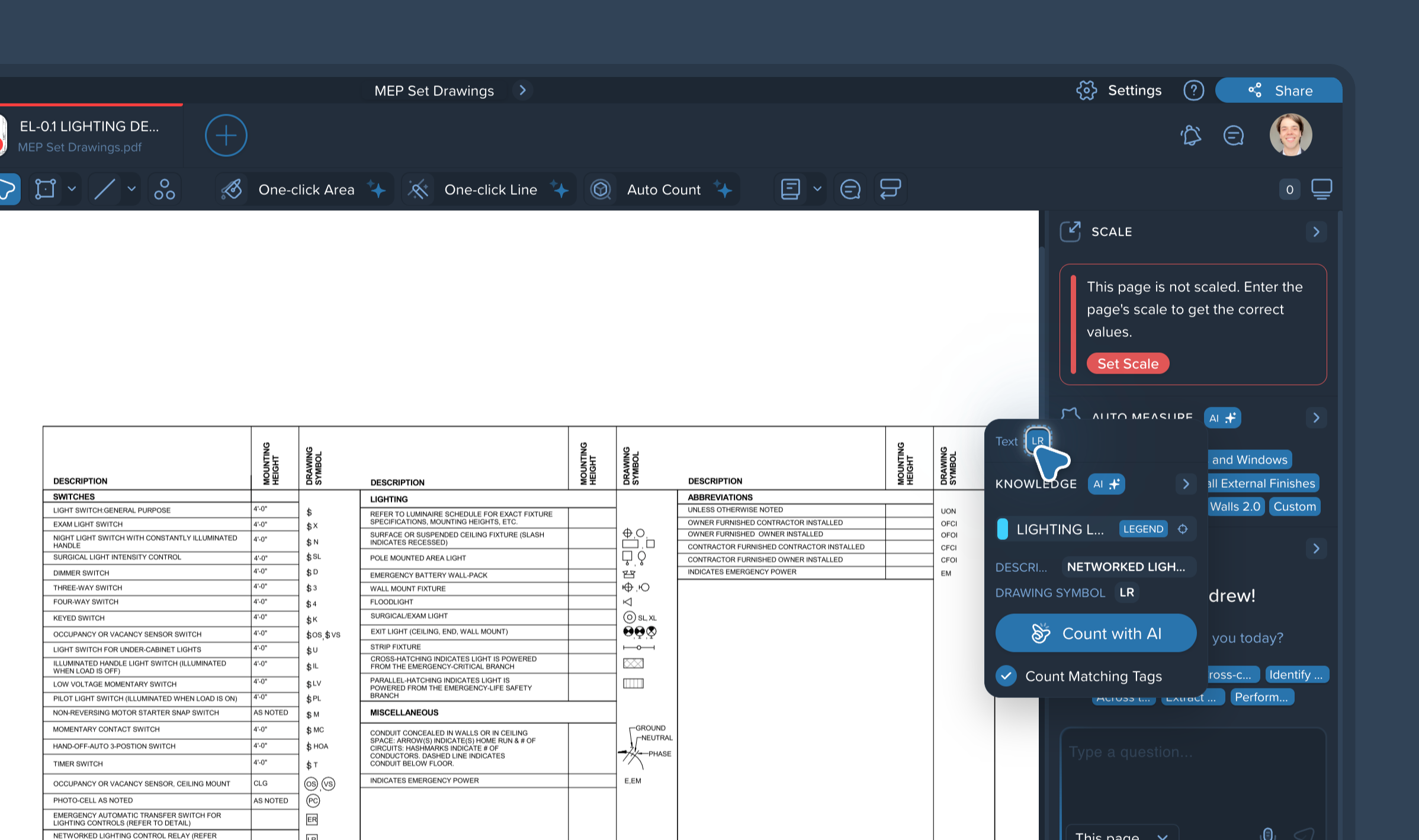
Hover over and click on any text item or label on your drawing.
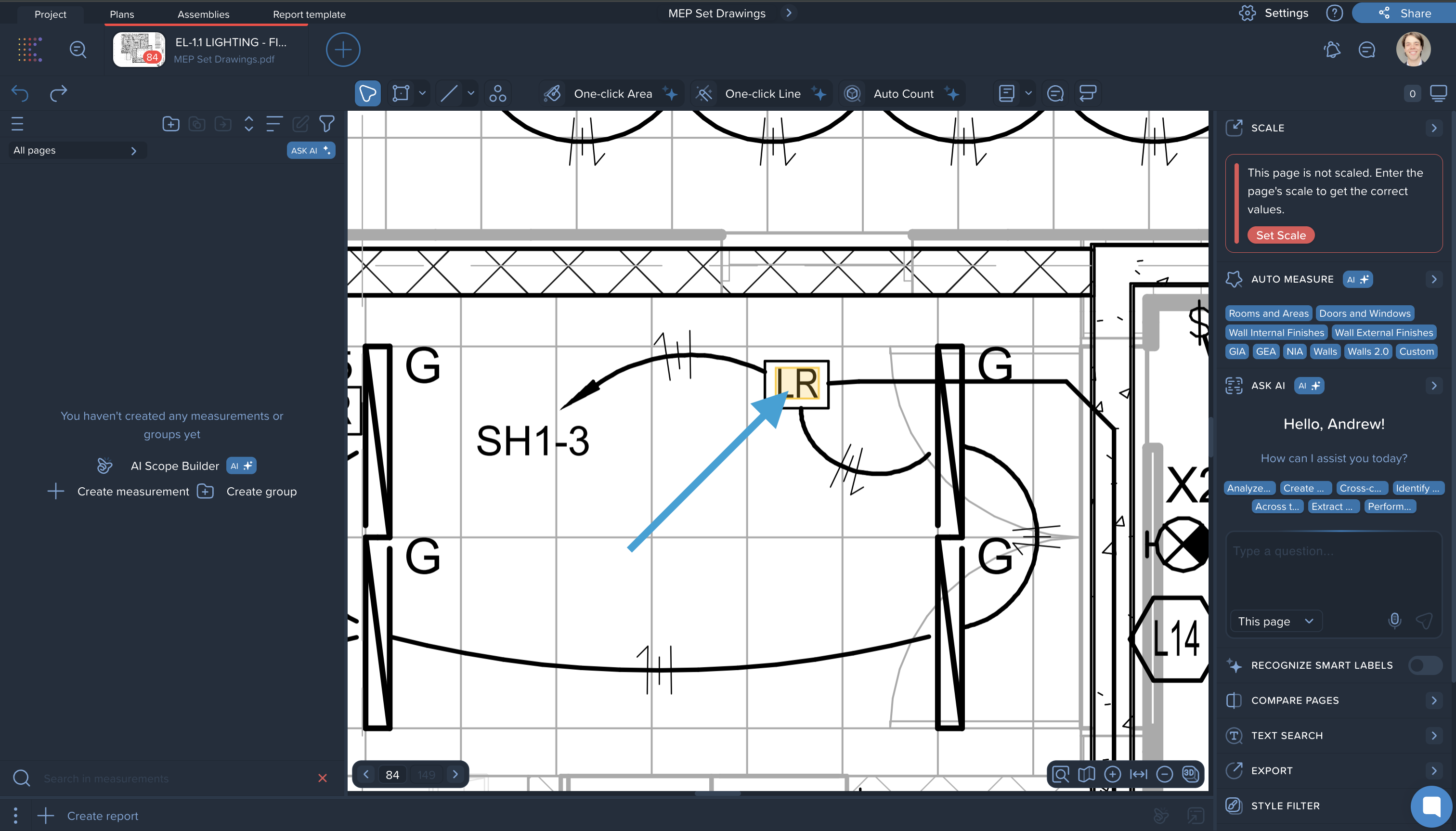
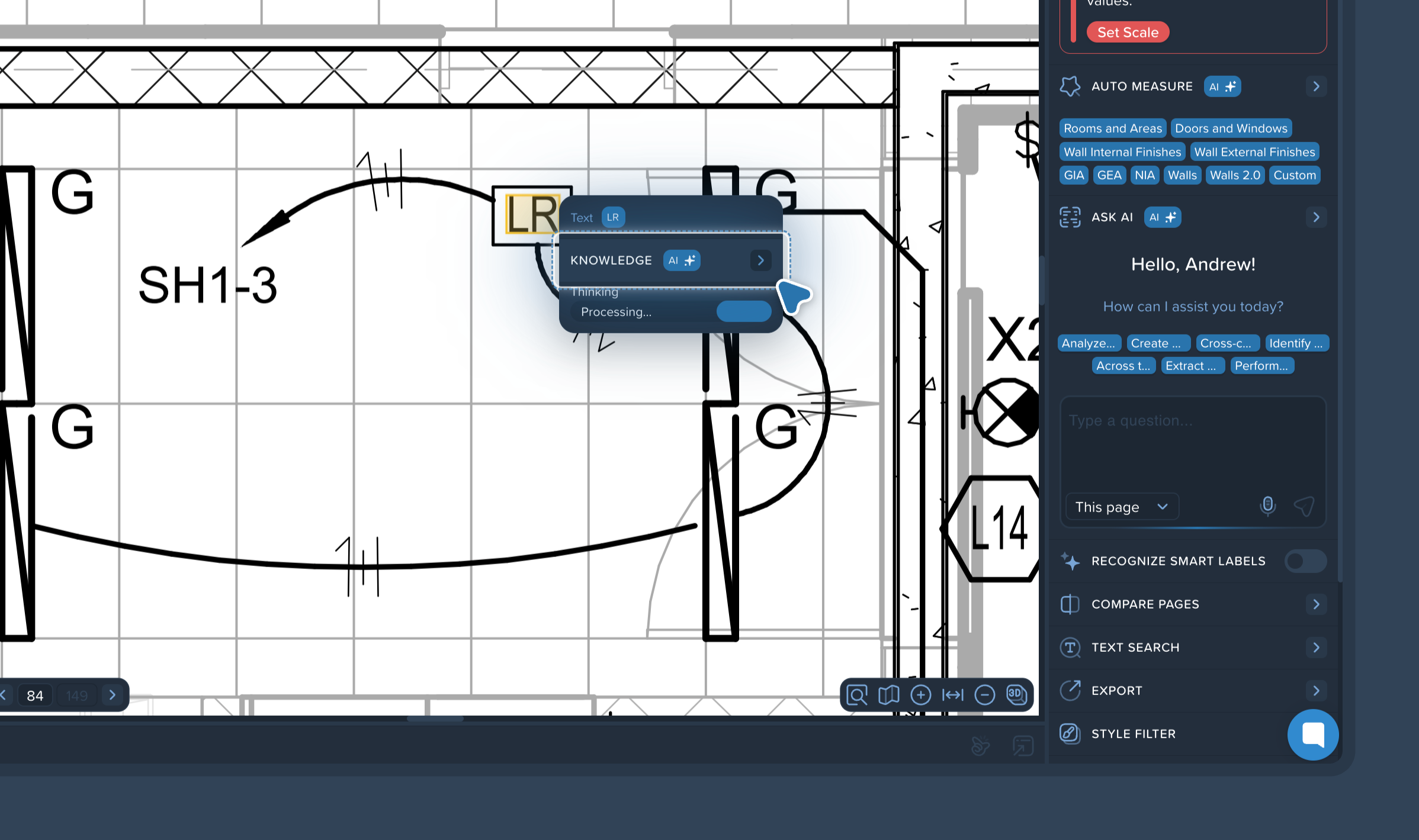
A small pop-up window called AI Knowledge will appear. The system will briefly process the file to locate where this specific item is defined.
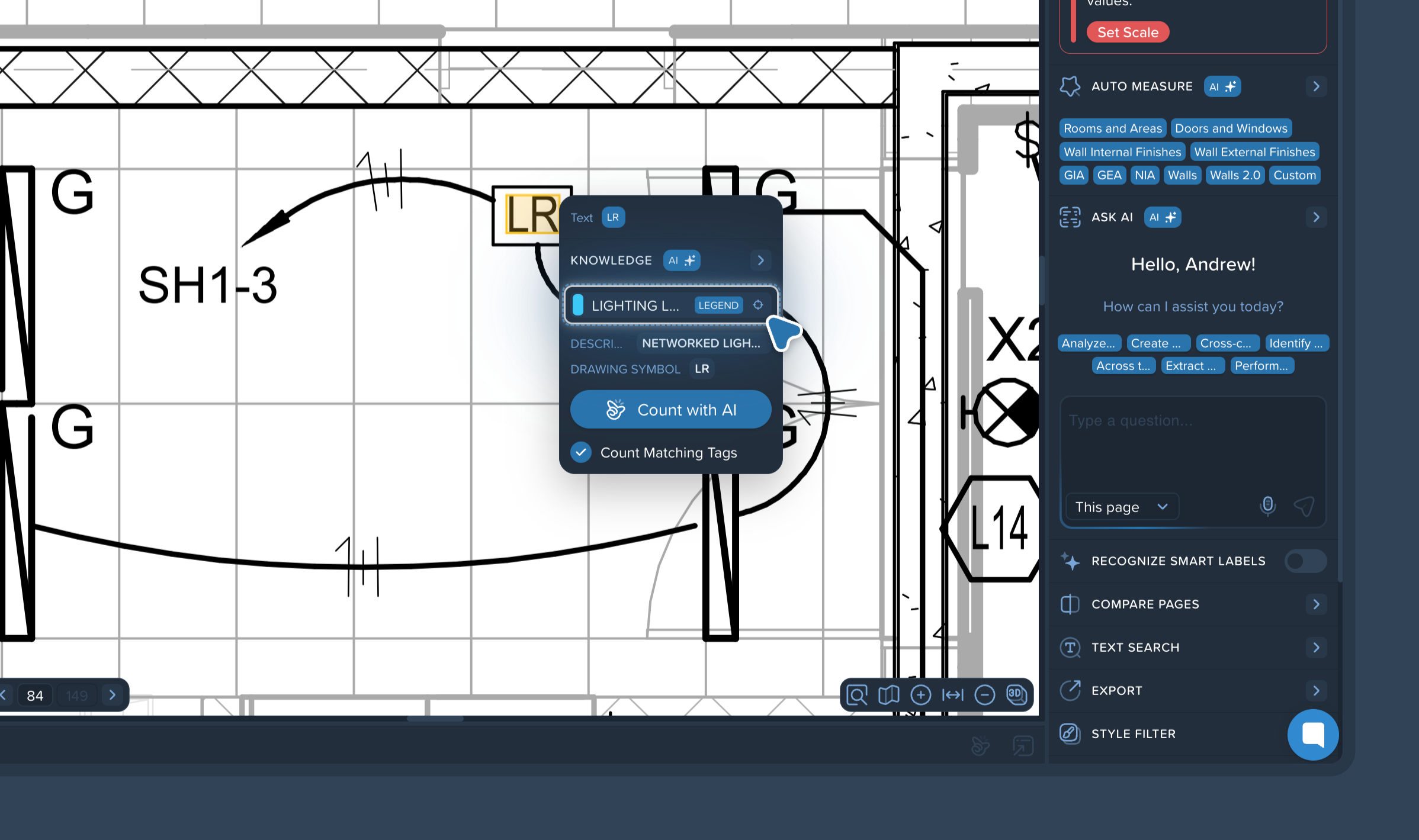
The pop-up will then display the name of the relevant legend or schedule, along with the specific description for that item extracted directly from it.
Want to see the original legend where the item is defined? Simply click the small target icon (focus button) inside the AI Knowledge pop-up.
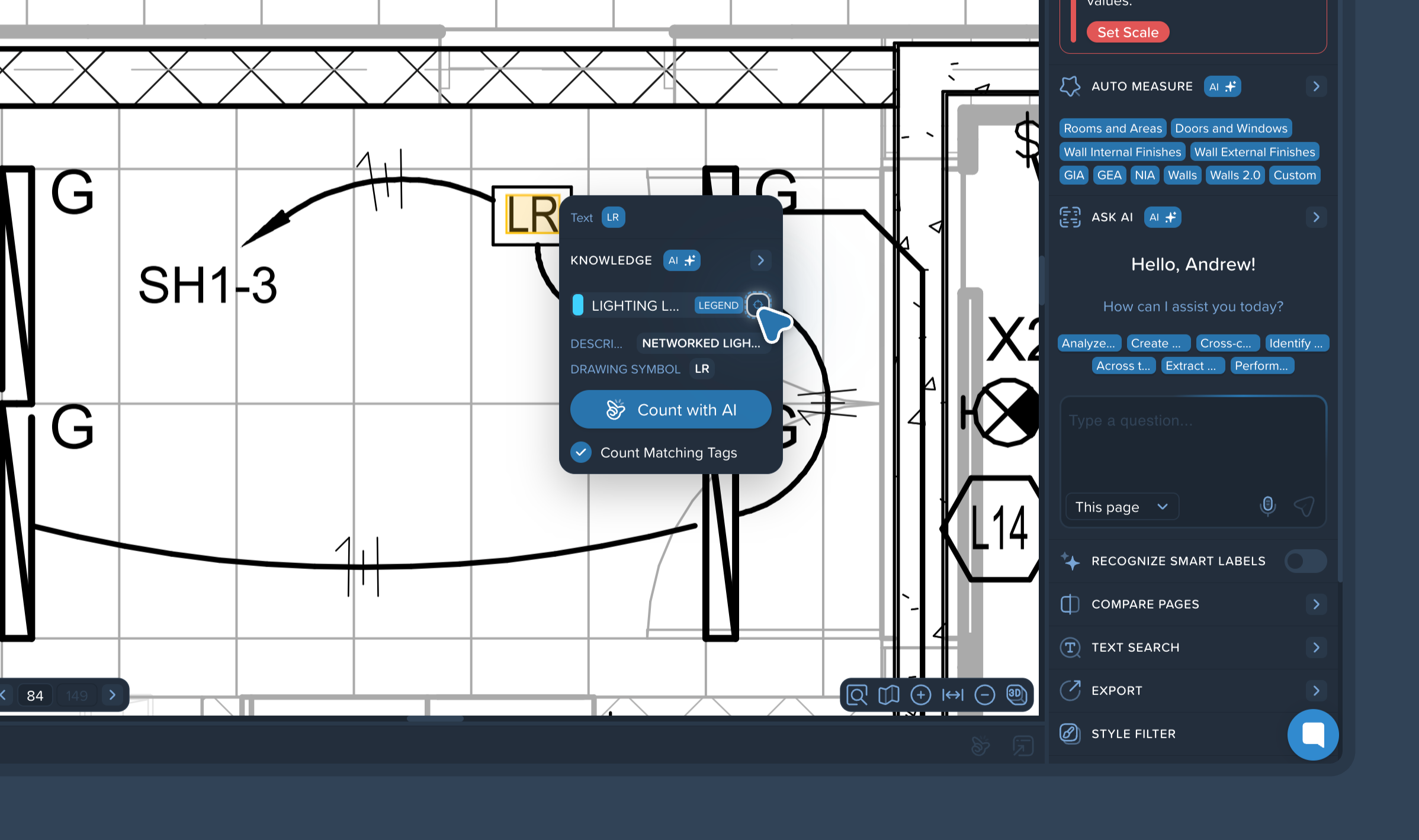
The system will automatically jump to the exact location of that legend or schedule, even if it's on a different page. Click the label again in the pop-up to return to your original view on the floor plan.
You can instantly create a count group for the selected item:
In the AI Knowledge pop-up, click the Count with AI button.
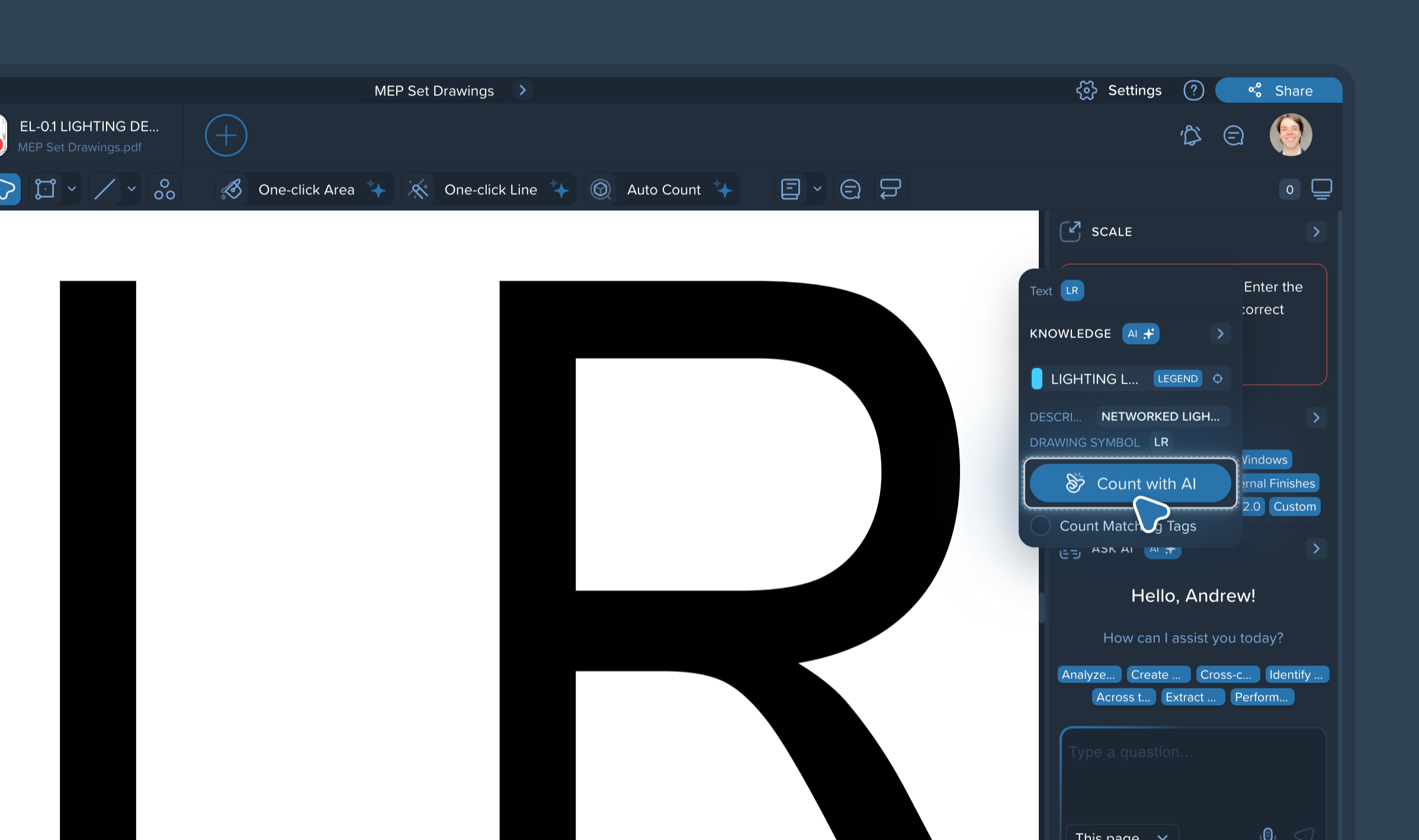
By default, the system will only search for identical text labels on the drawing.
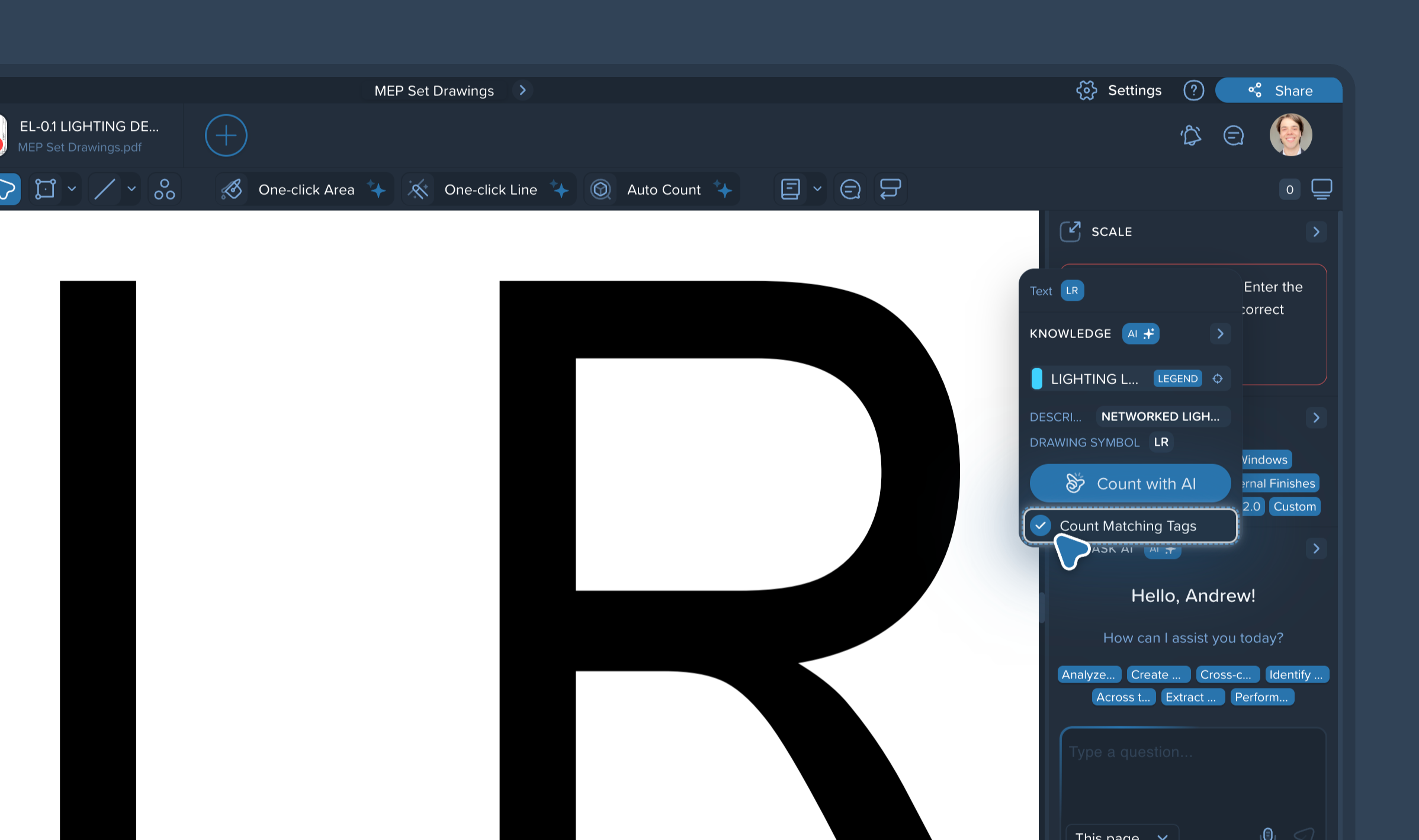
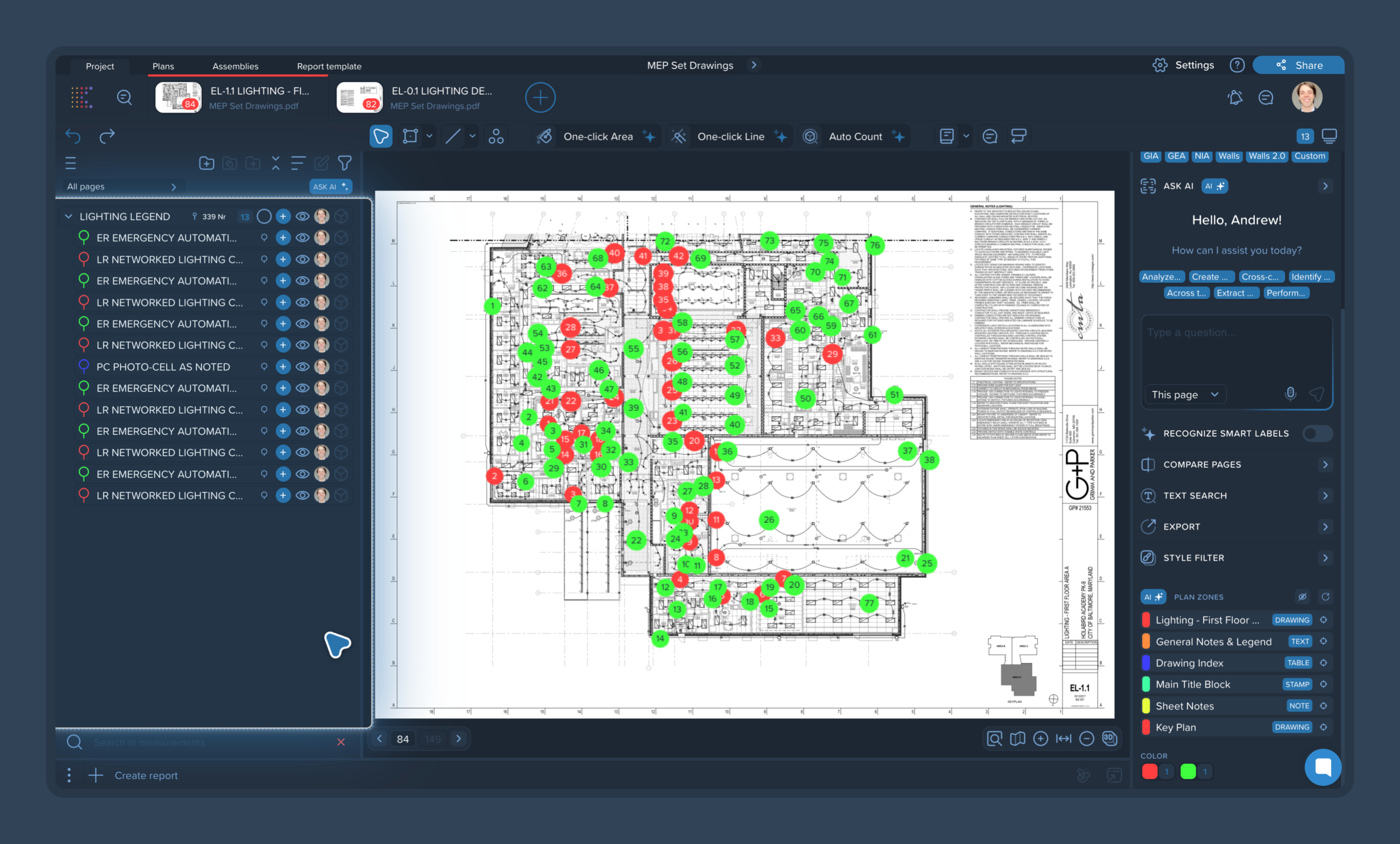
Pro Tip: Check the Count Matching Tags box before clicking the count button. This allows the AI to not only find the specific label you clicked but also identify and count all other associated items defined within that same legend, automatically generating a comprehensive breakdown in your left-side panel.
The Cross Reference feature also makes it easy to extract tabular data: Extracting Schedules and Tables