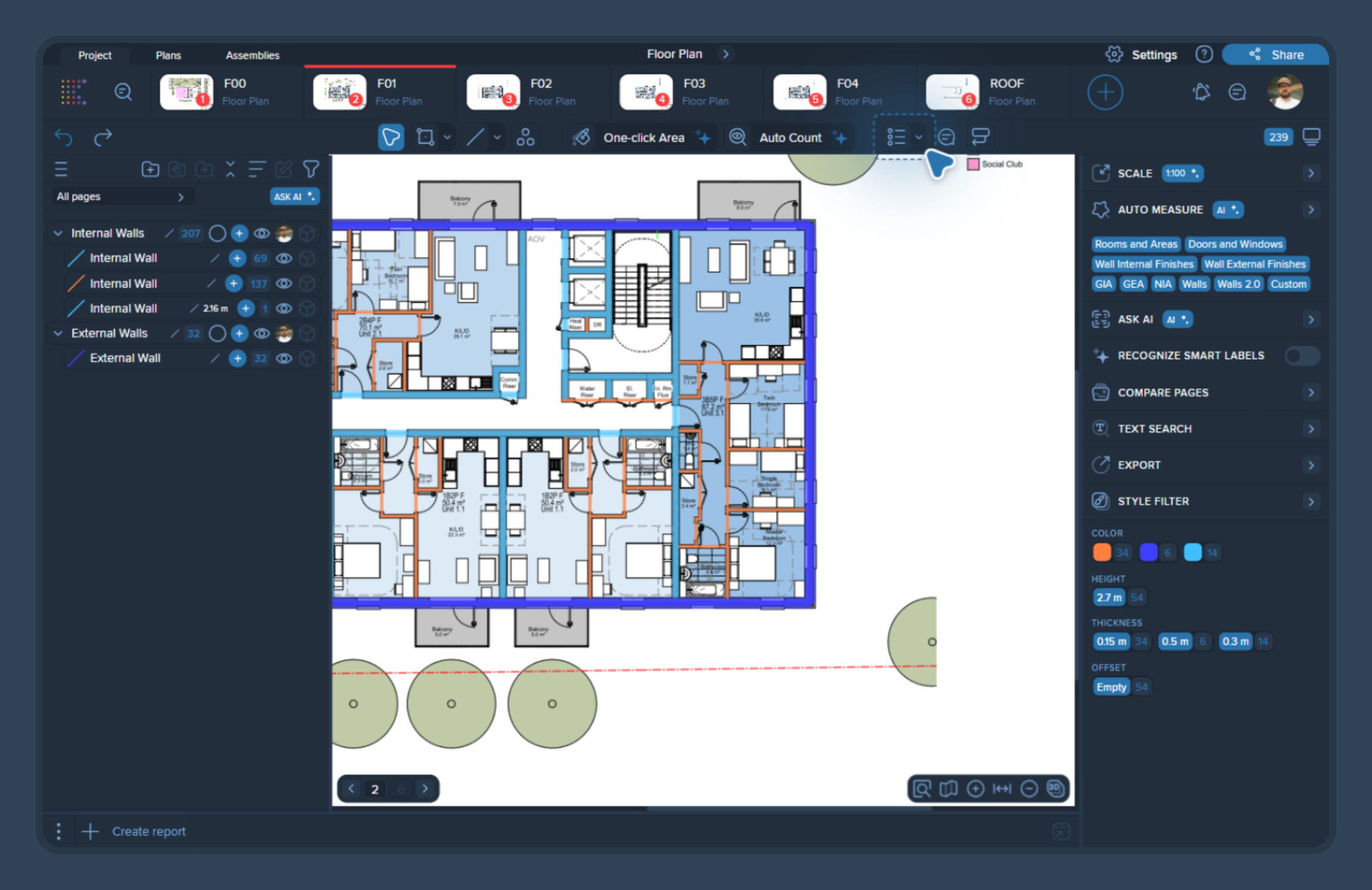
Go to Annotation tools.
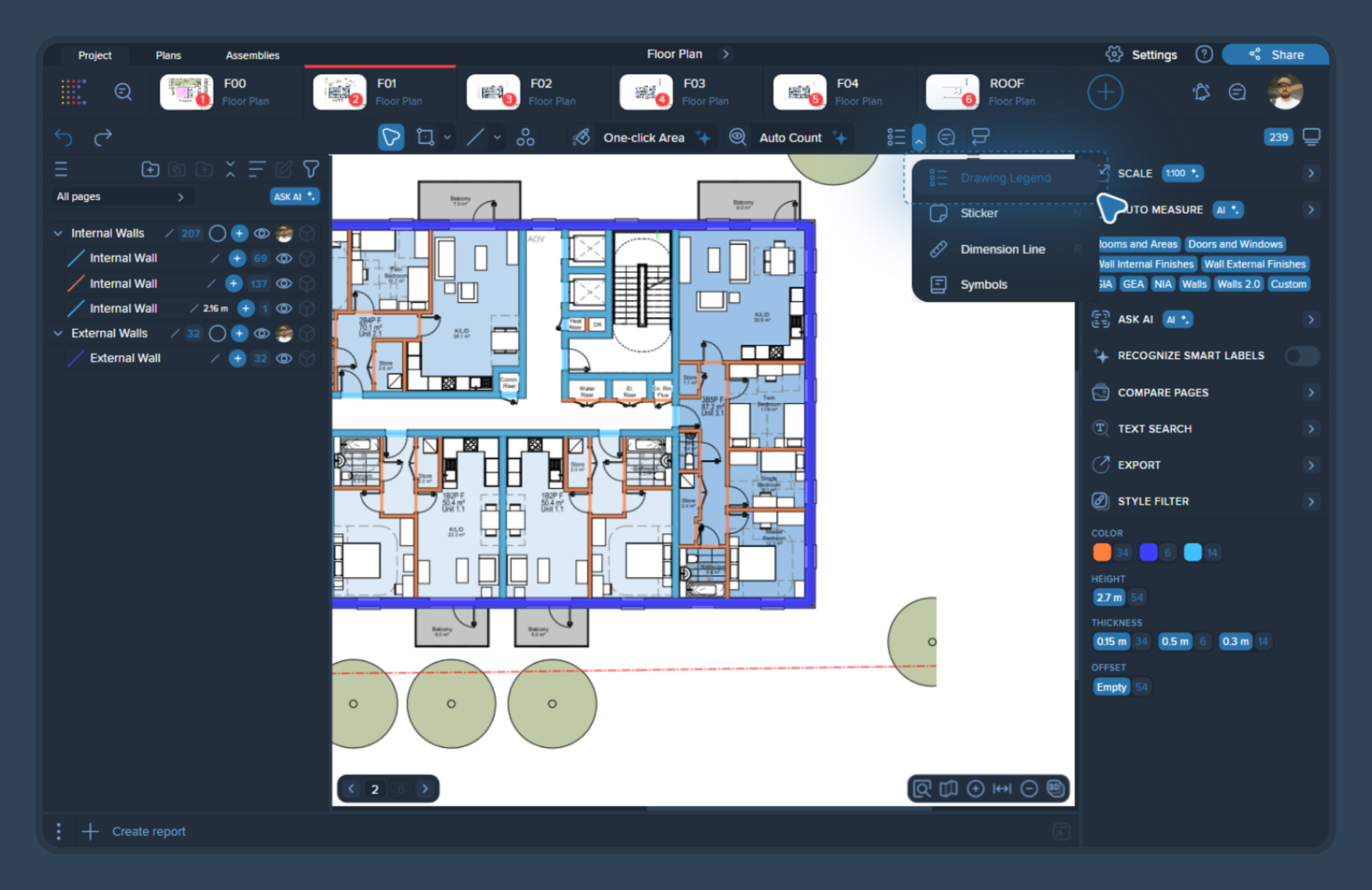
Select Drawing Legend from the dropdown.
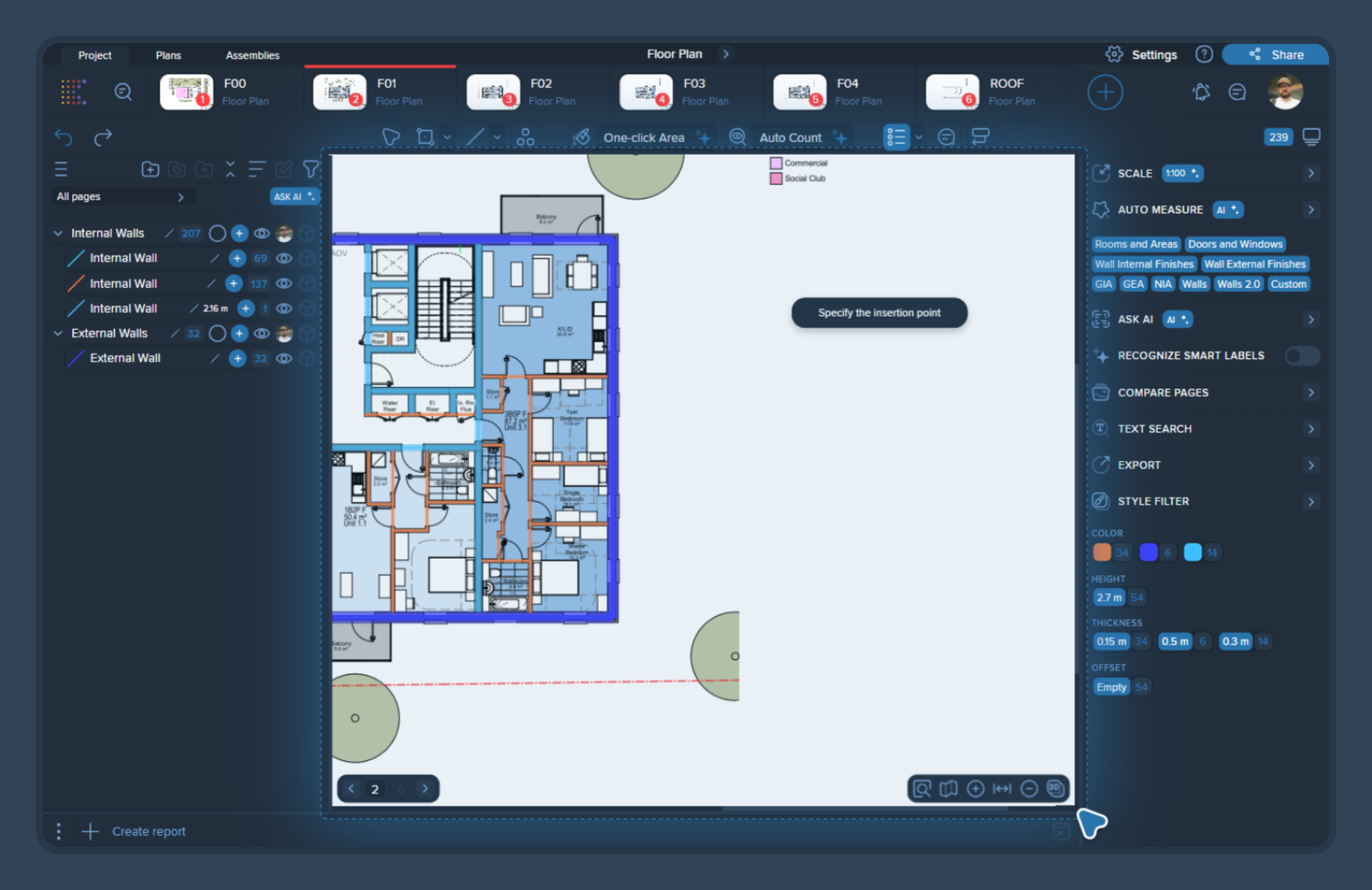
Click on the drawing to choose the insertion (paste) point.
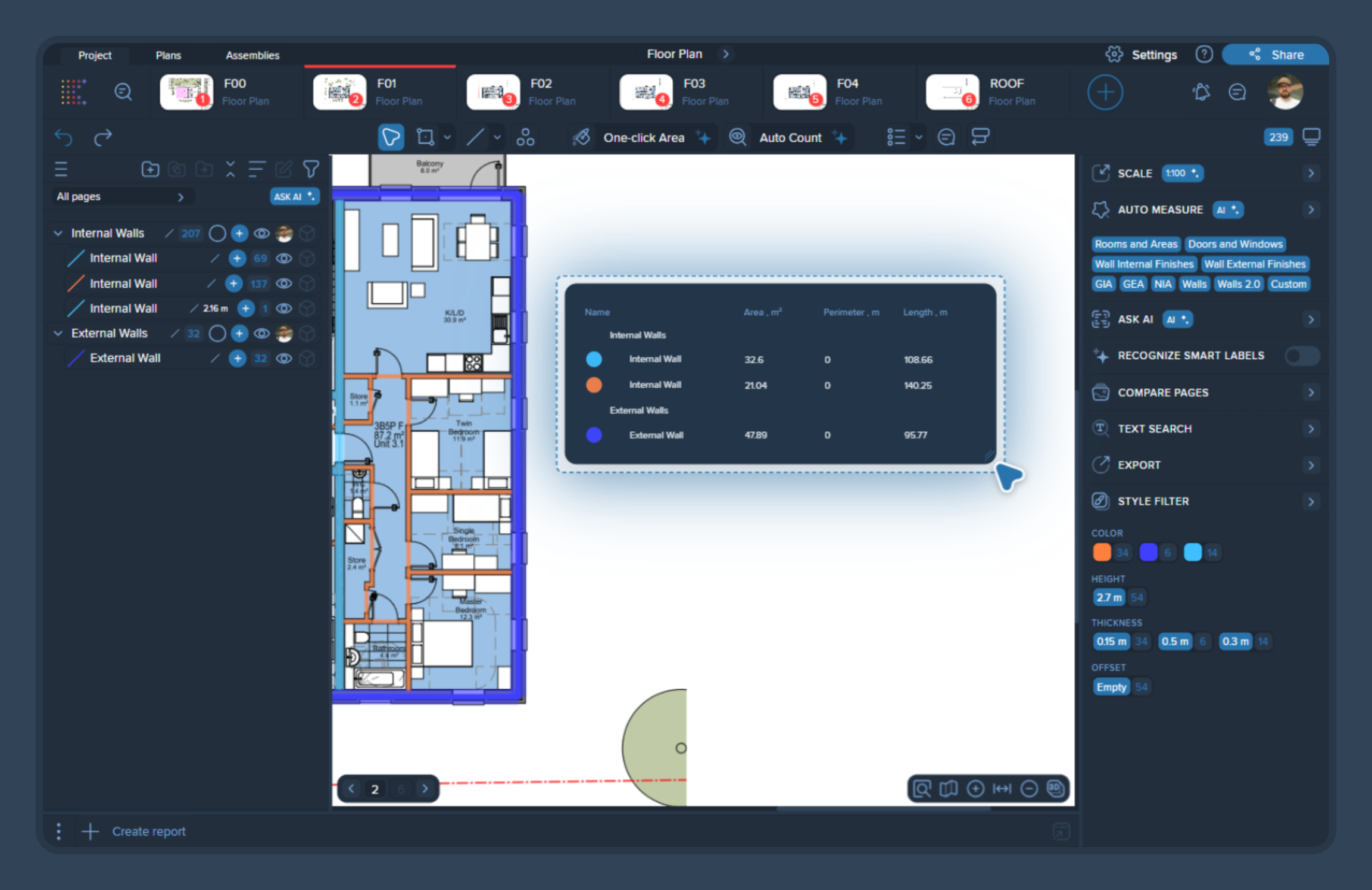
The legend will be placed on the page.
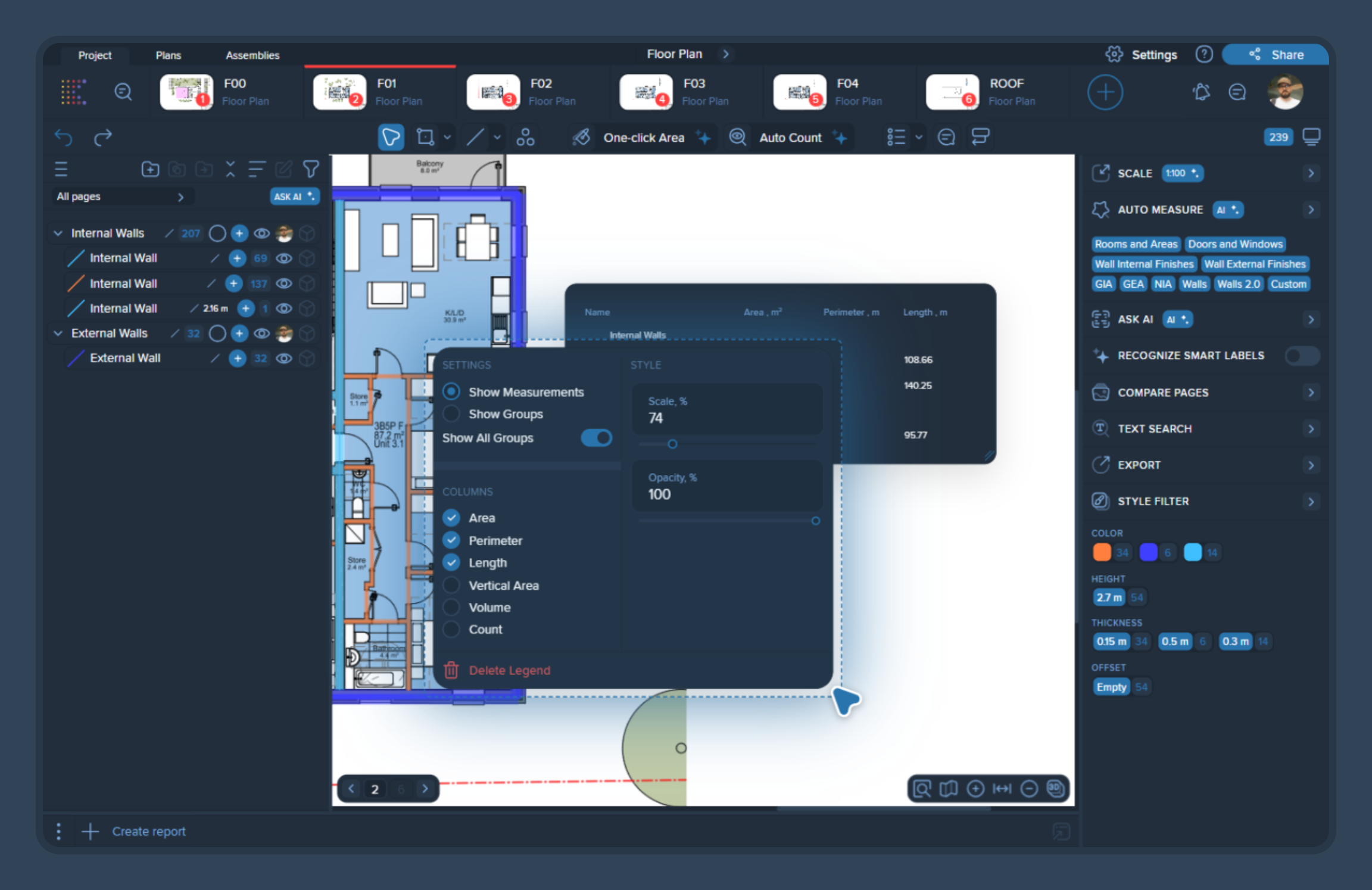
Right-click the legend to open settings.
Choose how legend entries are organized:
By measurement group
By measurement group + measurements inside
Select which takeoff data to display:
Area
Perimeter
Length
Vertical Area
Count
From the same right-click menu, you can:
Adjust Scale
Adjust Opacity
In PDF export settings, if Only visible measurements is enabled:
You may see many measurements listed in the legend inside Kreo (in case they exist on the same page),
but the exported PDF legend will include only the measurements currently visible on the drawing, so the output stays consistent and uncluttered.
The legend inherits your UI Theme colors. If you want a specific legend color in the PDF:
Switch your UI Theme before exporting (example: switch from Night to Day for a lighter/white legend),
Export to PDF,
then switch back to your preferred theme.