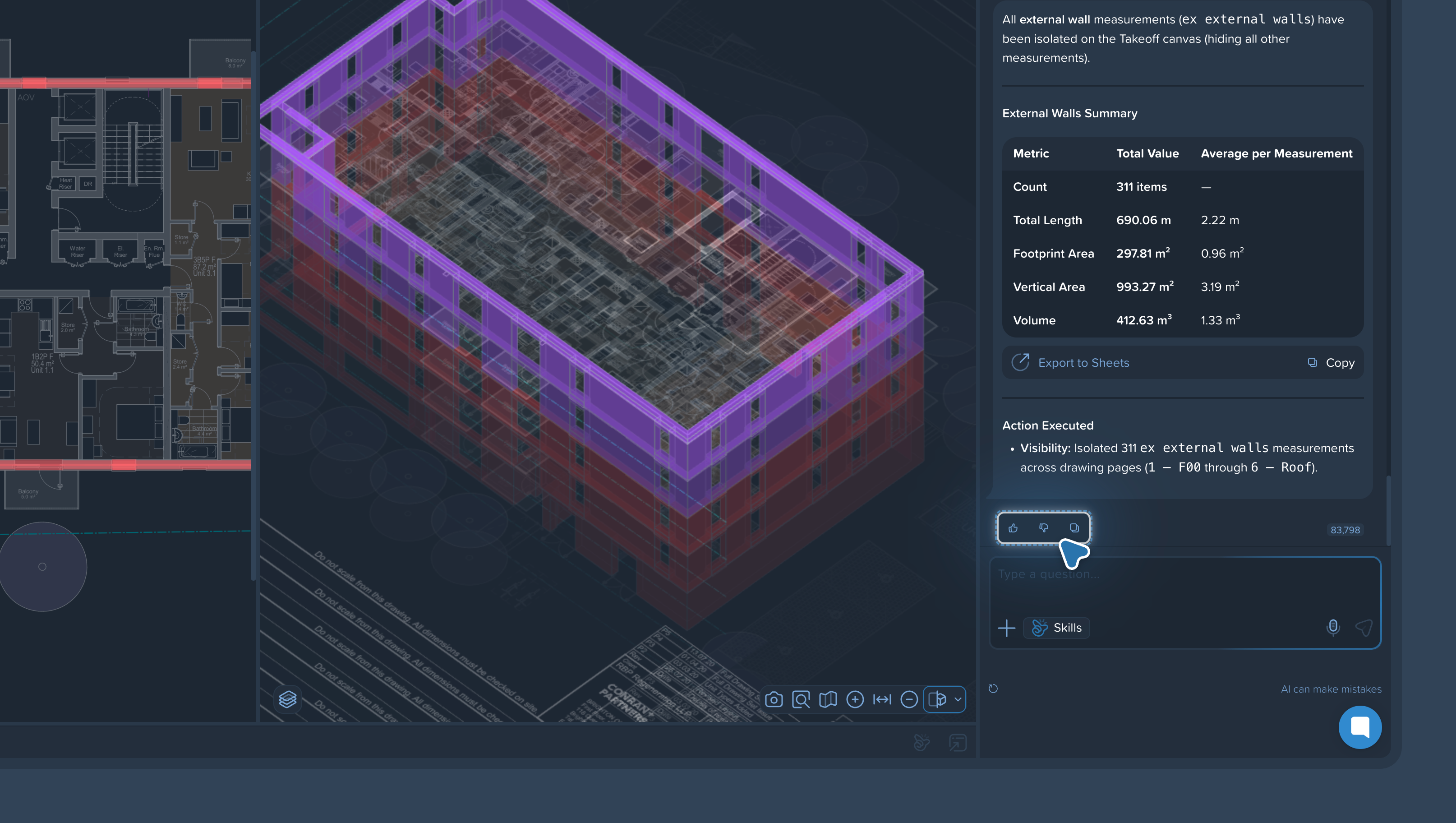
Caddie is Kreo’s AI agent for takeoff work. It doesn’t just answer questions about a drawing — it takes real actions in the product: runs measurements, builds reports, places annotations, and delivers files you can use.
What changed: earlier versions of Caddie mainly helped you find information on PDFs. Today’s Caddie does the work — with a clear plan you approve before it runs.
Caddie is a doer, not just a consultant.
You describe a task in natural language. Caddie looks at your project, clarifies what’s needed (when the task isn’t obvious), proposes a step-by-step plan, and — after you approve — executes that plan in Kreo. Each step is a real action in the product, not a promise in chat.
You stay in control: you see the plan first, you see progress as it runs, and you can stop or correct the path if something looks wrong.
Caddie follows a simple loop:
You set the task — e.g. count doors on a floor, build a room schedule, find tags and place markers.
Caddie refines the brief — if anything is ambiguous, it asks a short set of questions about data (which sheets), processing (what to find / how), and output (format and destination). Simple, clear tasks can skip this step.
You review the plan — a human-readable list of steps appears before any heavy work starts.
Caddie executes step by step — each step is verified in the product; no silent “done” claims.
You get the result — measurements, reports, annotations, or exports tied to real changes in your project.
Transparency: you approve the plan, watch progress in real time, and can see what succeeded or failed on each step.
If something blocks a step (sheet not open, region not recognized, etc.), Caddie diagnoses the issue, applies a small fix, and continues the main task without losing context.
A short map of capabilities (not a full how-to for each):
Search & extract — find tags, markers, schedules, and text on drawings, including messy or fragmented PDF text layers; read legends and tables with vision when needed.
Auto Measure — run measurement workflows for rooms & areas, walls, doors, windows, finishes, and related quantities — under control, not “launch everything at once.”
Reports — create and update spreadsheet-style reports inside Kreo from drawing data.
Excel & BOQ — export to .xlsx, build quantity / cost-style outputs, and work with templates in a closed loop from drawing to file.
Annotations — place text and callouts at the right places on sheets (e.g. after counting windows on elevations).
Vision on complex details — identify types of windows, doors, or details from visuals when text isn’t enough.
Edit measurements — change measurement properties in bulk via a request, instead of fixing each one by hand.
Attach files — add supporting files in chat (PDF, images, CSV, Excel, Word, TXT, JSON — up to 50 MB per file) for Caddie to use.
Q&A on documents — still answer questions about drawings and project documentation, and help draft scope-style text, without changing geometry when you only need an answer.
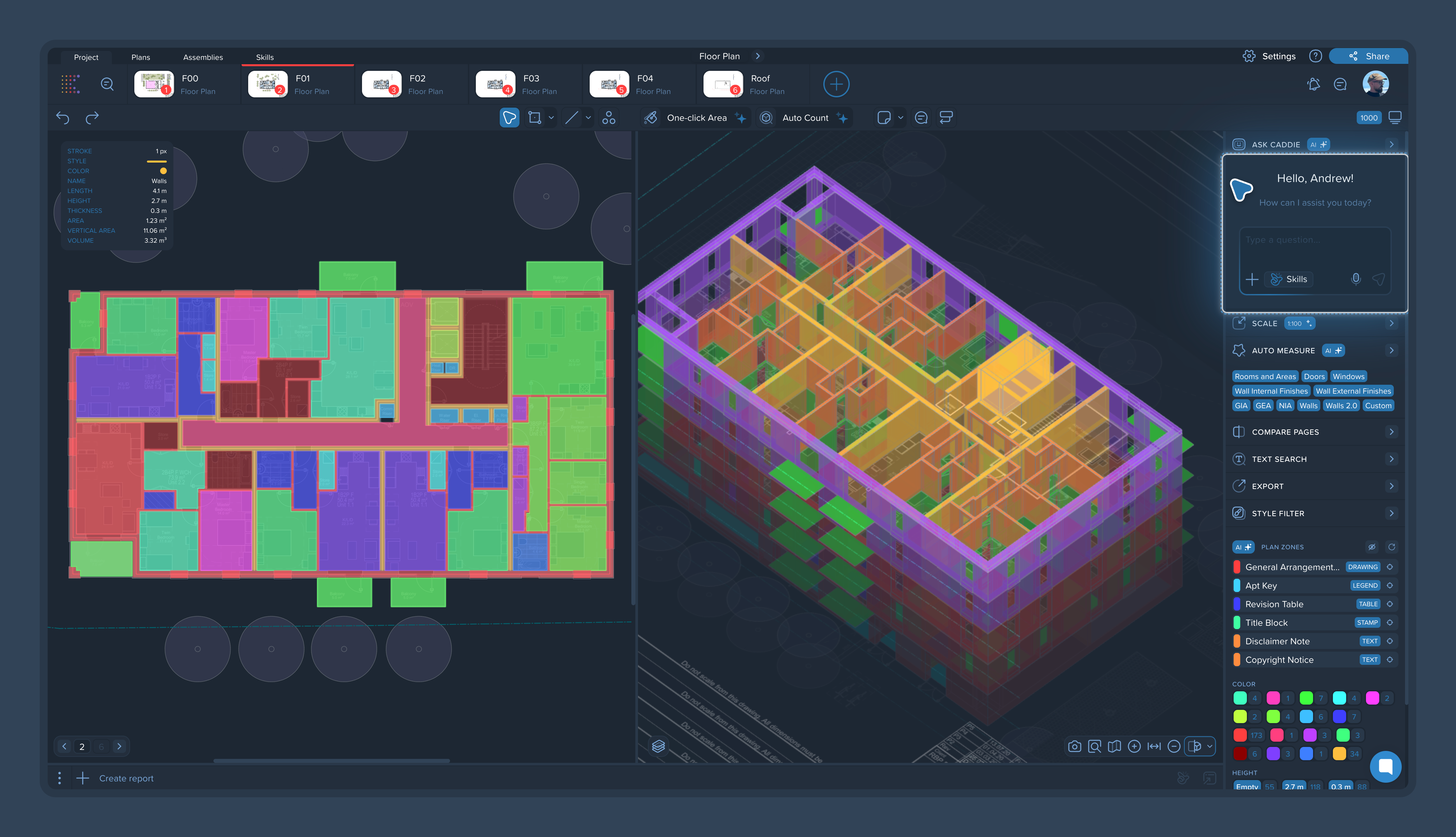
Open a project and open the Caddie side panel.
Describe the task in your own words — or use one of the examples below.
Answer any clarifying questions, then review and approve the plan.
Watch the steps run. When finished, check the result on the drawing / in reports / in the exported file.
Count all the doors on the first floor
Collect room schedule with measured areas in Excel
Find FD-01 tags on all plans and place markers
Approve the plan before heavy work starts
Stop / pause if the run isn’t going where you want
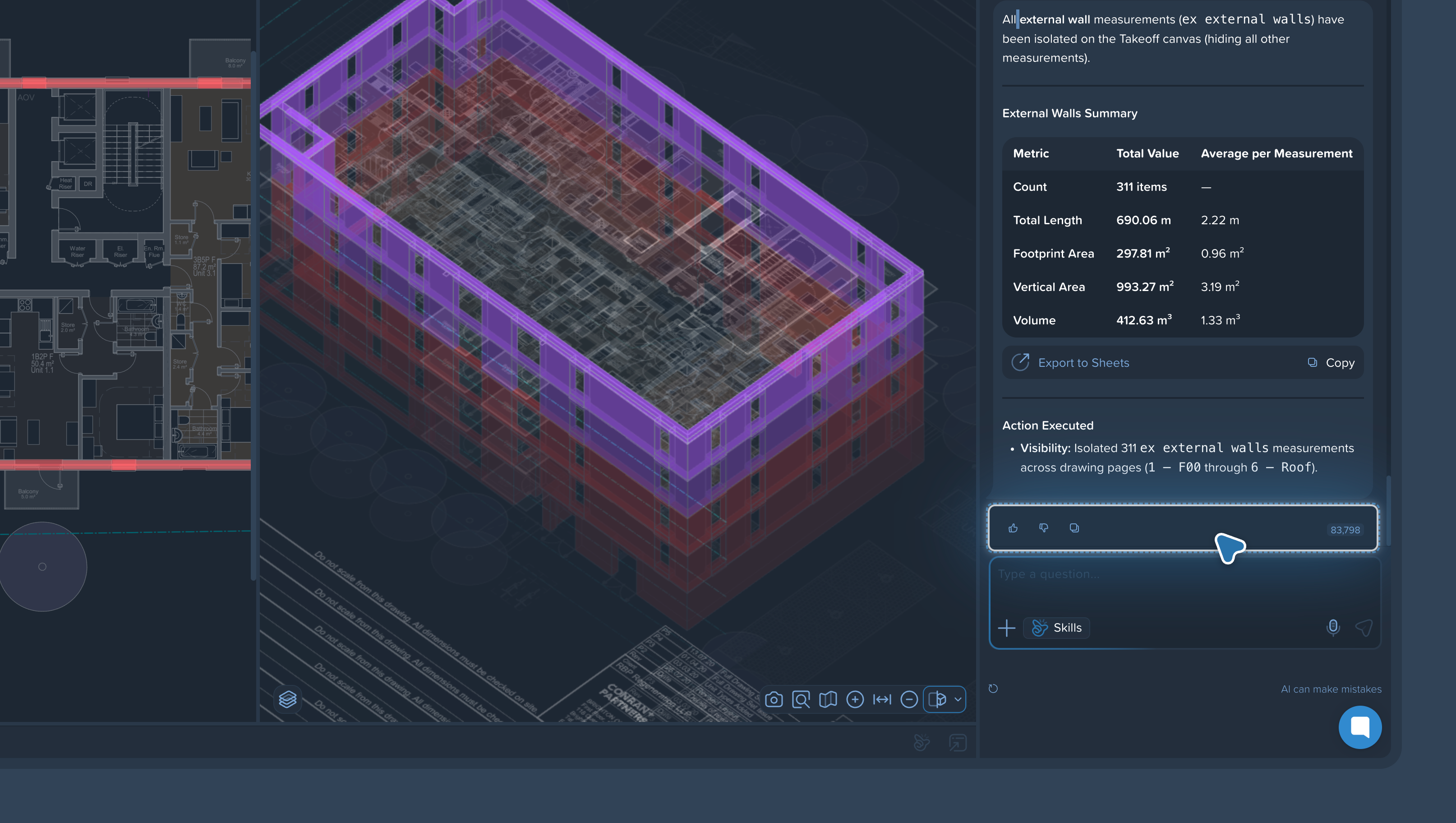
👍 / 👎 on outputs — feedback helps Caddie adapt to your preferences
Reset the chat when you want a clean start (context also resets when you move to another drawing page)
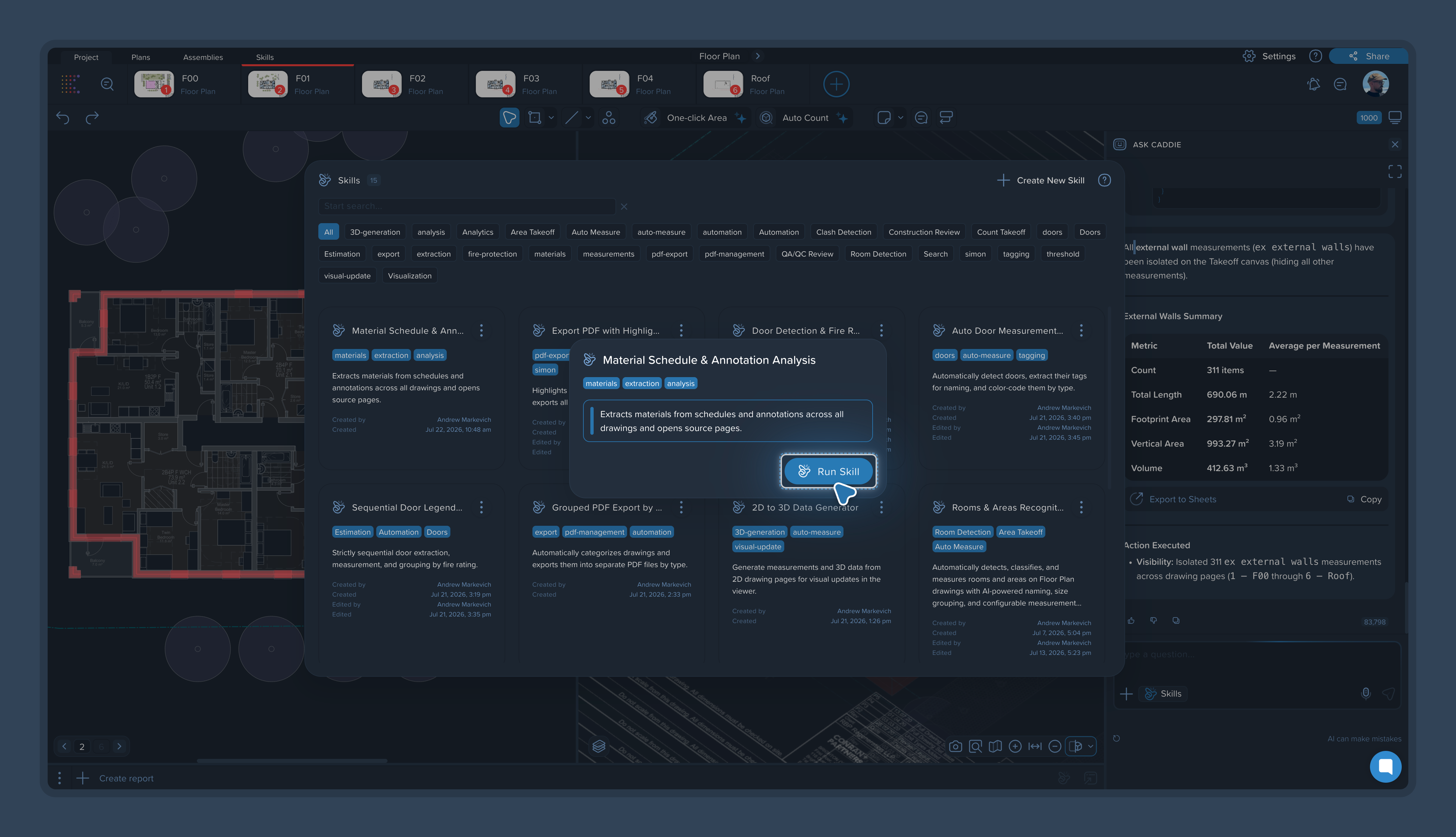
Skills are reusable AI workflows — a playbook you (or Kreo) define once as a sequence of steps. When you run a Skill, Caddie is the agent that executes it: it asks the intake questions, works through the steps, and checks itself at control points.
Same agent, two ways to work:
Ad‑hoc in Caddie — one-off tasks in chat
Skills — repeatable processes you want the same way every project
→ Skills collection
→ Start with What Are Skills? An Overview and Running a Skill in Your Project
Caddie remembers useful context over time — project conventions, preferences, and past instructions — so repeated work gets closer to how your team actually operates.
Under outputs you’ll see 👍 / 👎. That feedback isn’t cosmetic: it helps Caddie adjust layout choices, communication style, and calculation logic toward what you accept.