
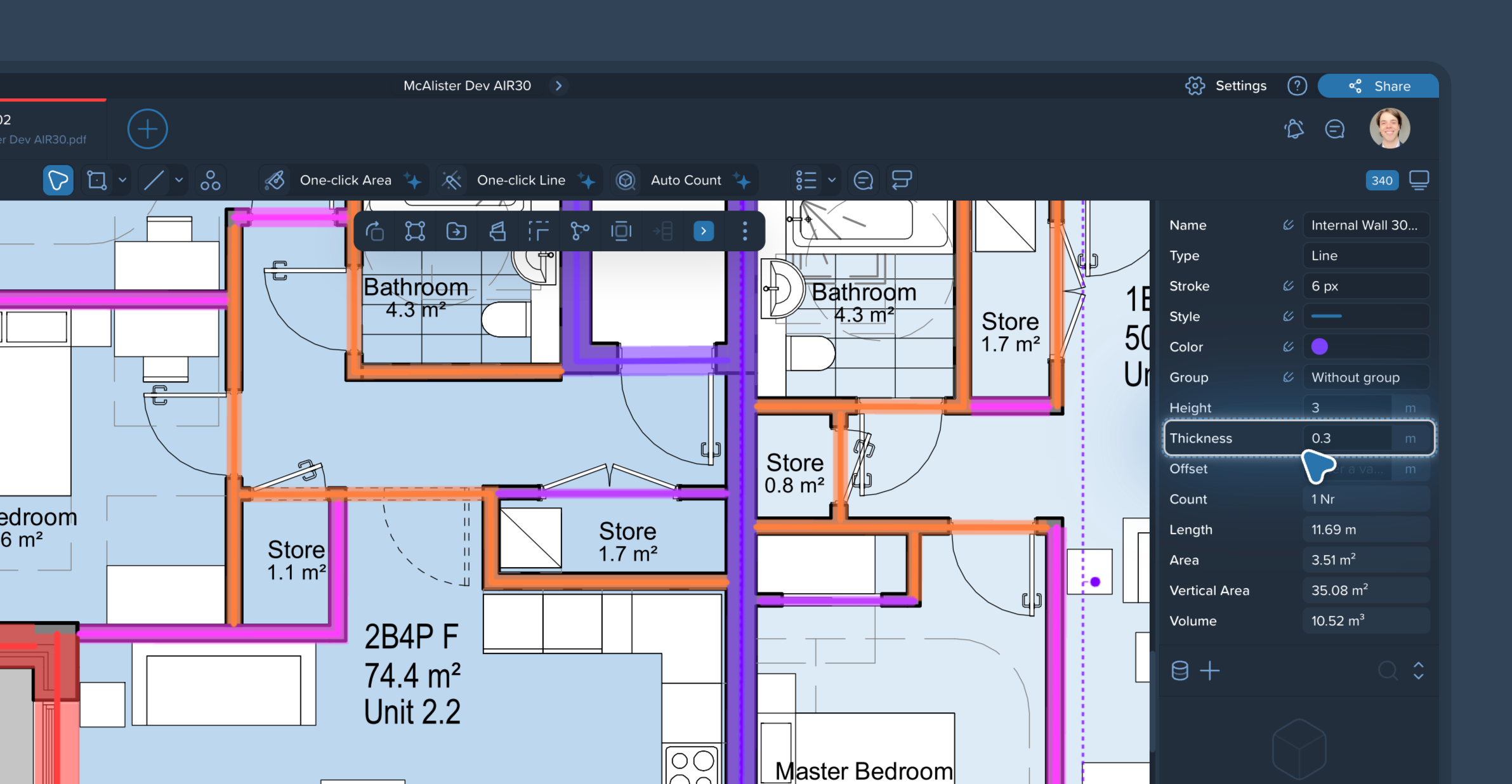
In Kreo, all linear-type measurements (such as walls or partitions) have a default parameter called Thickness.
Entering a thickness value serves two main purposes:
Quantity Calculations: It allows the system to automatically calculate the horizontal area (the area under the wall in m², using Length x Thickness) and the volume (in m³, using Length x Thickness x Height, if a height is also provided).
Visual Representation: On the drawing, the thickness is visually represented as a semi-transparent offset on both sides of your polyline, giving you a realistic top-down view of the element's actual width.
How to Toggle Display Thickness
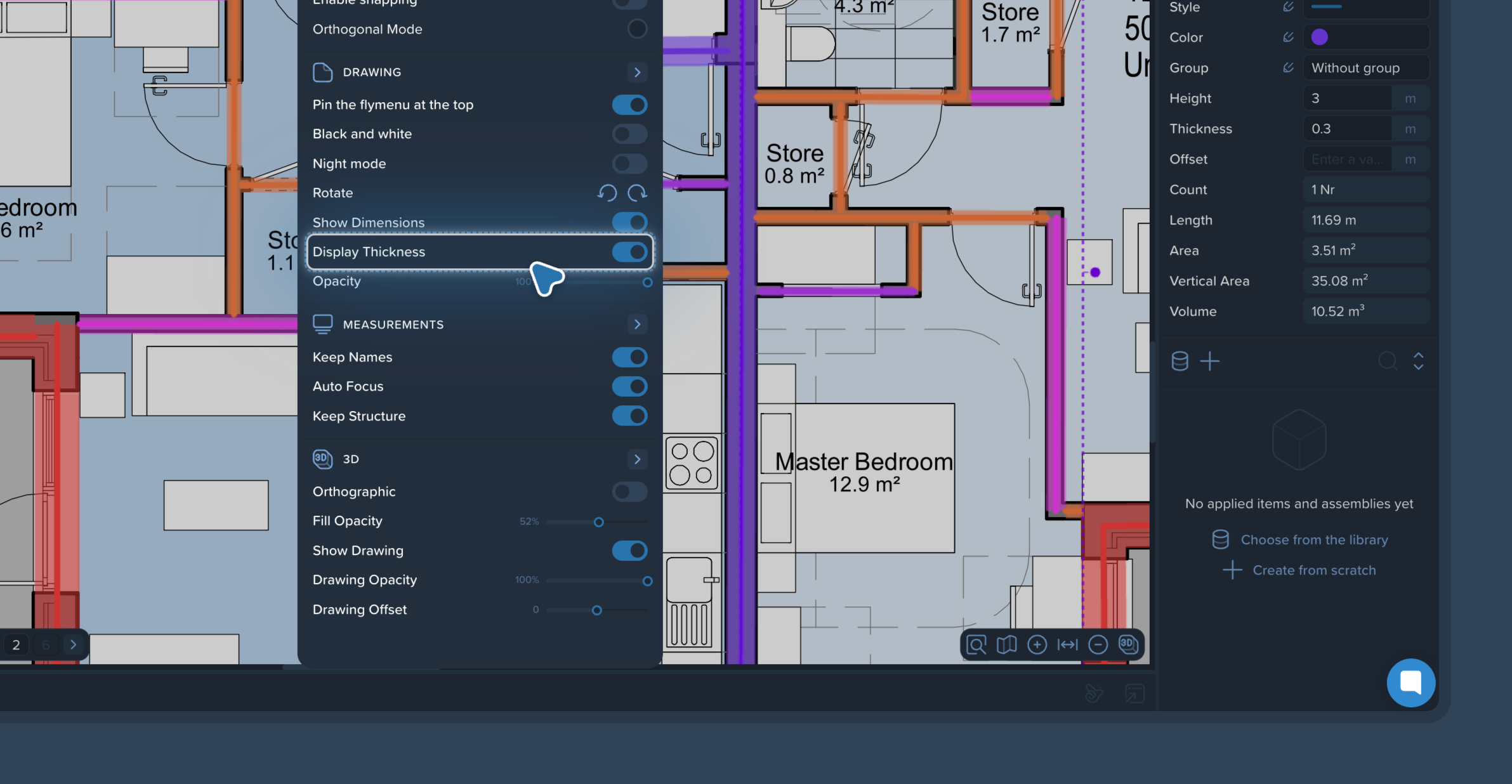
Sometimes you need the thickness value inputted for your estimate calculations, but visually, you just want to see clean, thin polylines on your drawing without the semi-transparent width cluttering your view. This is exactly what the Display thickness setting is for.
To toggle this visual setting:
Click the Settings gear icon (⚙) in the top right corner of the screen.
In the dropdown menu, locate the Drawing section.
Toggle the Display thickness switch on or off to control the visibility of the line width.
Note: Turning this setting off only hides the visual width on the canvas. It does not remove your inputted thickness data, and your area and volume calculations in the reports will remain perfectly intact.