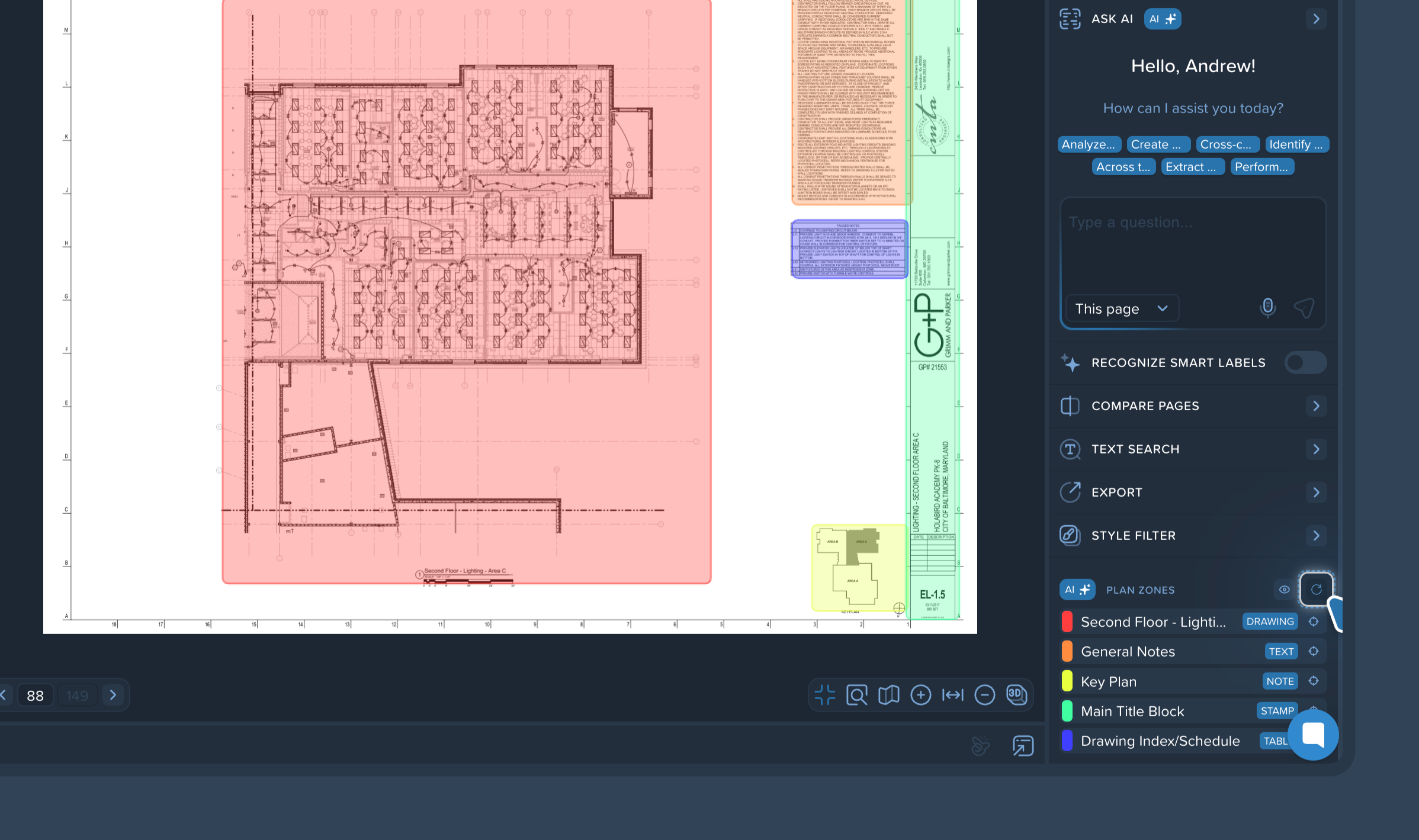
Plan Zones is an AI-powered feature that automatically recognizes and highlights key areas on your drawings. This not only simplifies document navigation but also helps other AI tools better understand the drawing's context for more accurate data extraction.
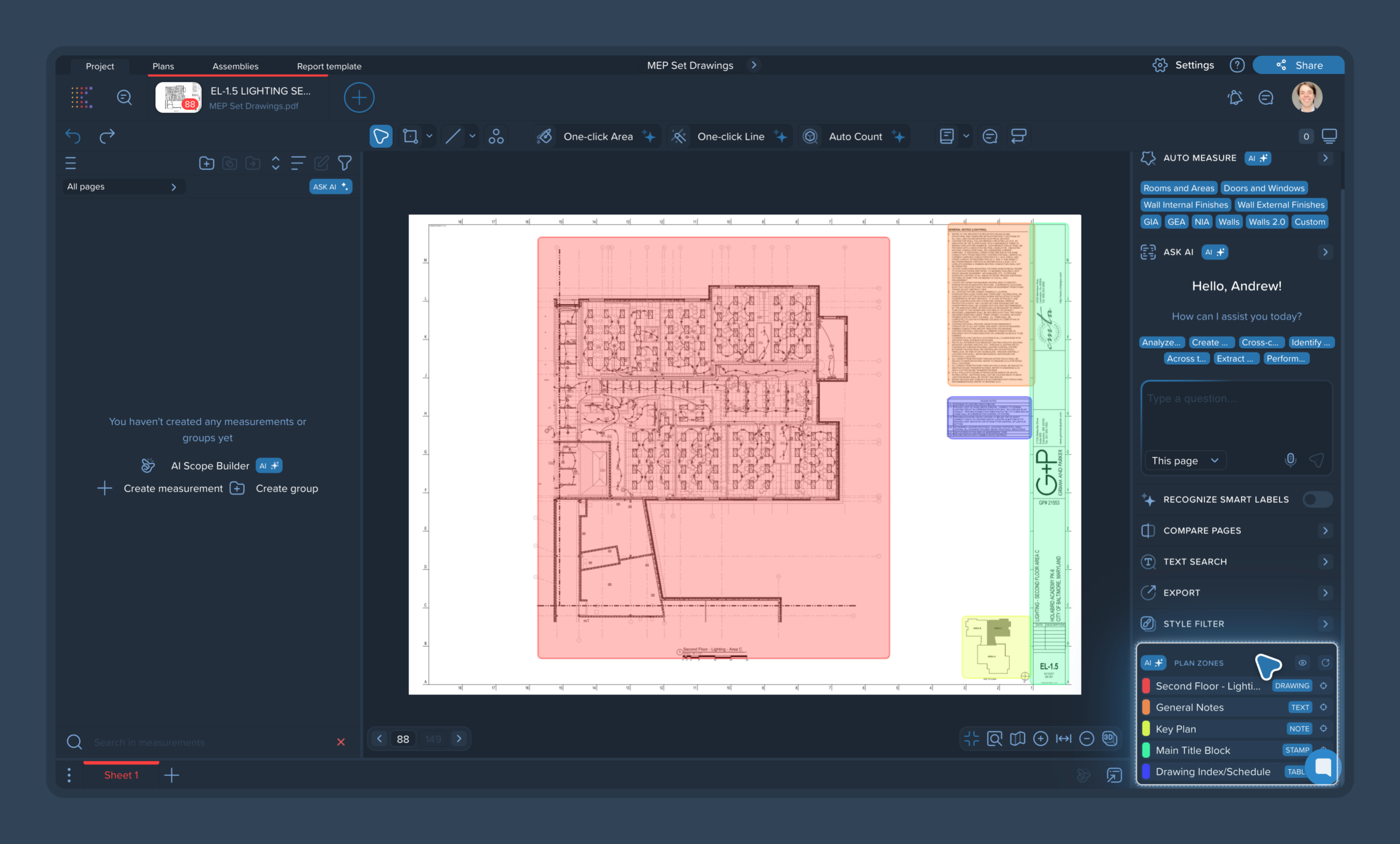
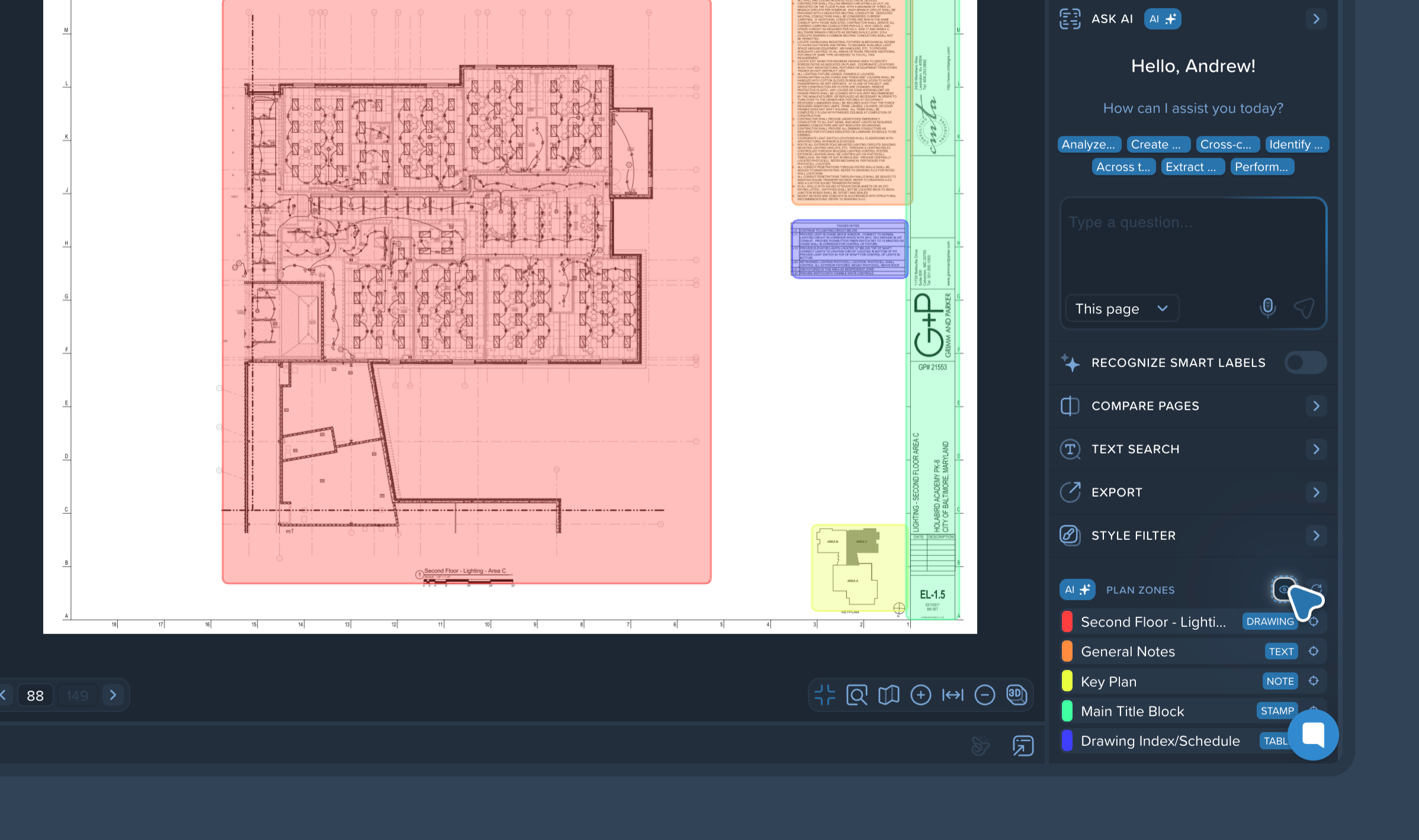
Open a drawing page and look at the right panel. At the very bottom, you will find the Plan Zones menu, which displays various types of recognized areas:
Drawing
Text
Note
Stamp
Table
Click on any of the zone focus buttons in this list. The canvas will automatically jump and focus on the selected area directly on the drawing.
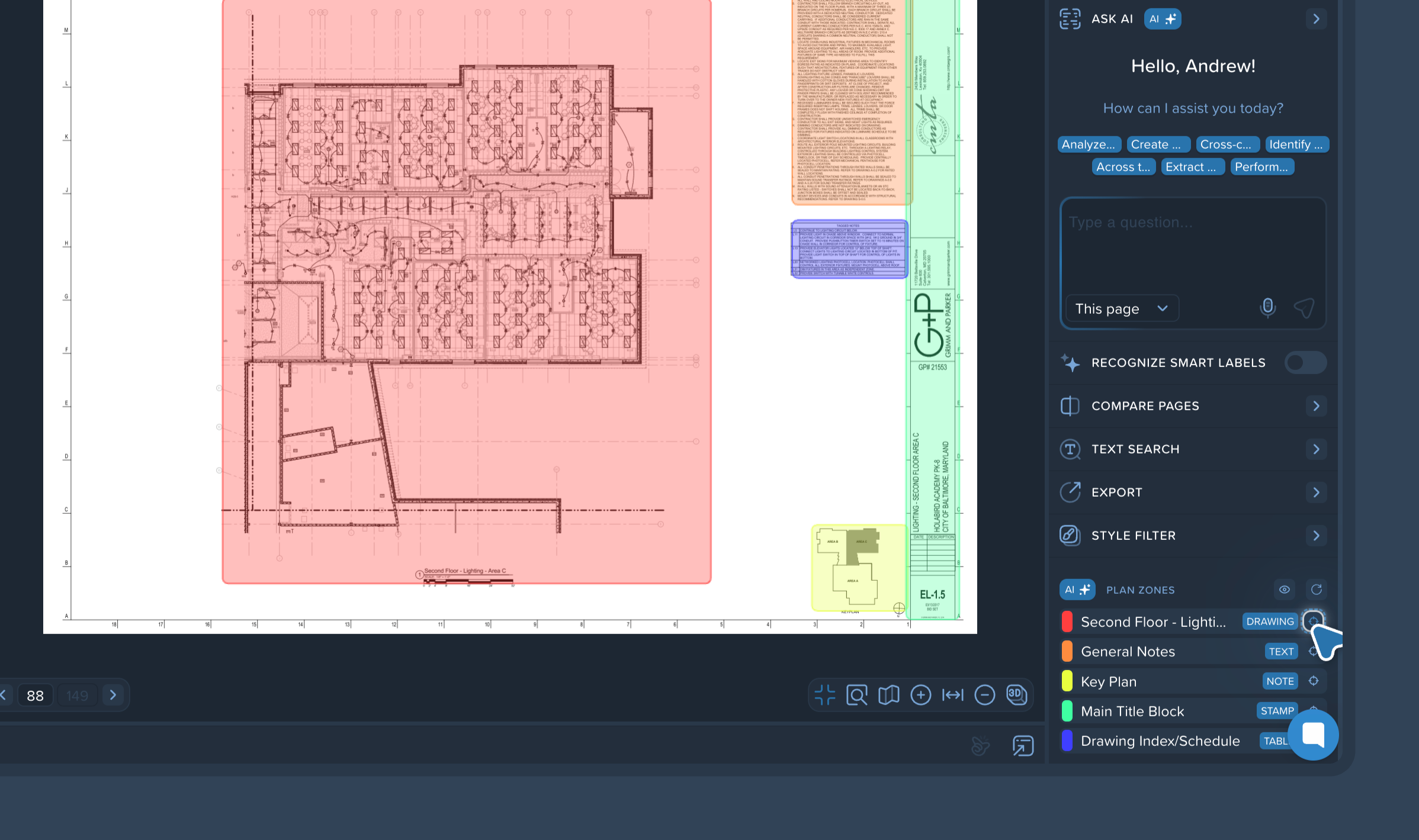
Manage visibility: you can easily hide or show the color highlighting of the zones on the sheet. To do this, click the eye icon (👁) next to the Plan Zones menu title.
The Plan Zones feature plays a crucial role in AI performance. It helps the AI understand the context when using the Text Search, One-click Area AI Classification, or Cross Reference tools. Thanks to this, the system can correctly extract information from tables or legends, automatically create counts, and find the necessary labels accordingly.
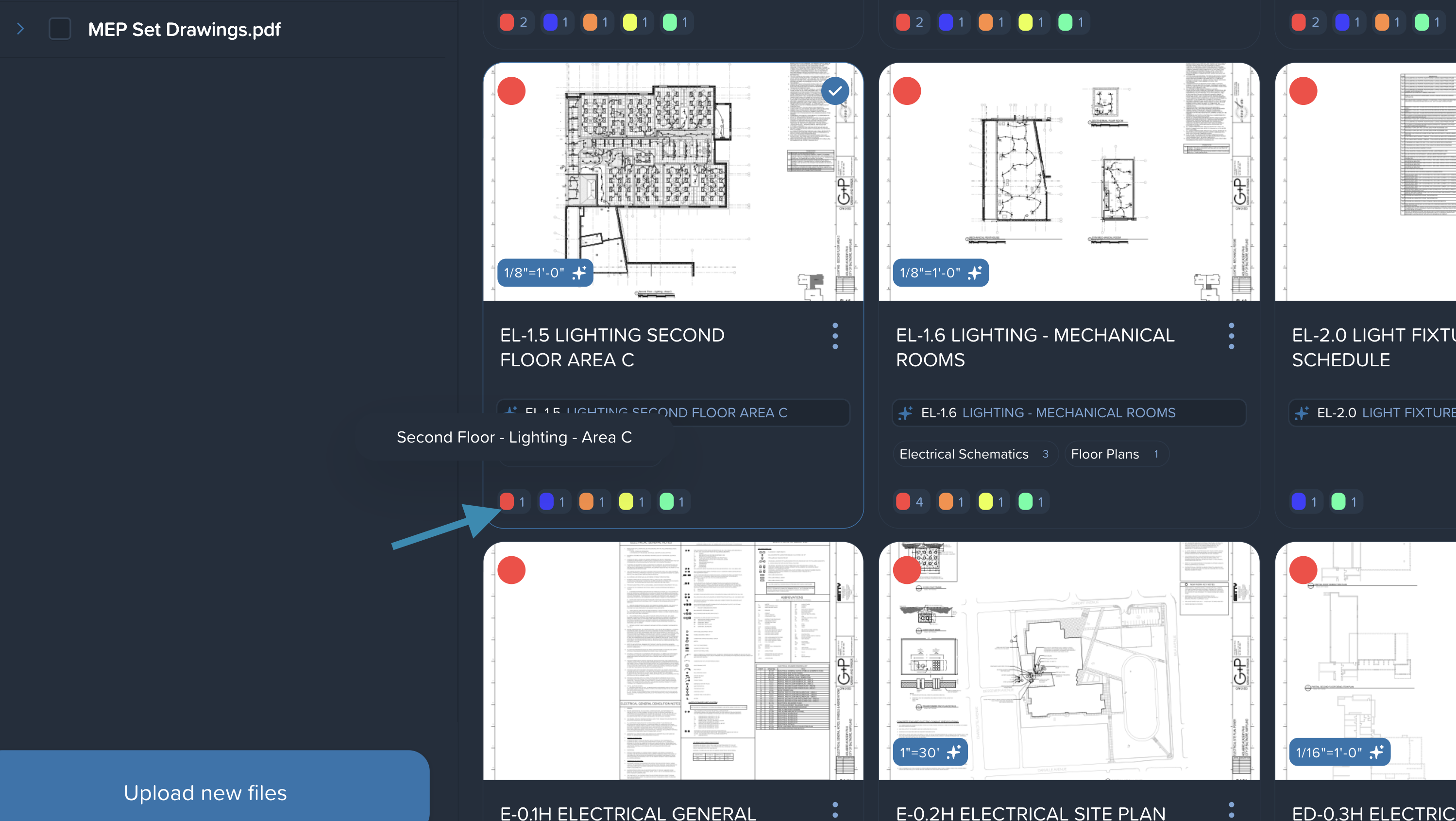
Pro Tip: You can quickly check which zones are present on specific sheets right in the File Manager. Colored indicators corresponding to the found zones are displayed under each drawing thumbnail. This is very convenient for a quick overview of your documentation.
Pro Tip: You can quickly Extract Legend info to Kreo spreadsheets.
❗ Troubleshooting: If the plan zones didn't load or you need to update them, you can restart the recognition process. Click the reload icon (🔄) next to the Plan Zones menu title, and in the pop-up window, click Restart. The system will process the drawing again and redefine the plan zones.